 Priya Nair
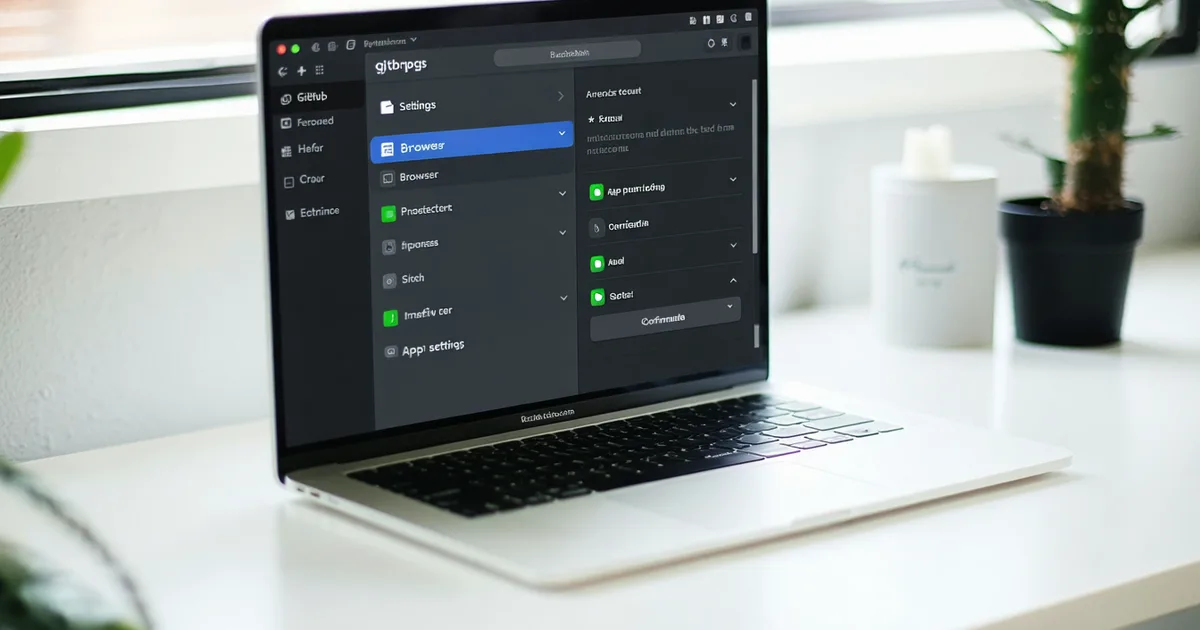
This guide walks through the full setup of Commitloom on a GitHub repository — from installing the GitHub App to seeing your first AI review comment on a pull request. The whole process takes under two minutes for a single repository. For teams with multiple repos, you can authorize Commitloom for all repositories in an organization in one step, or selectively authorize specific repos.
Prerequisites: you need a Commitloom account (free tier covers up to 50 PR reviews per month across 3 repos) and admin or owner access to the GitHub organization or personal account you're connecting. If you're on a team account, you'll need your organization admin to approve the GitHub App installation.
Step 1: Install the Commitloom GitHub App
Sign into your Commitloom account at commitloom.com and navigate to Settings → Integrations → GitHub. Click Connect GitHub. This opens the GitHub App authorization flow in a new tab.
On the GitHub side, you'll see the Commitloom App installation screen. It shows the permissions the app requests:
- Pull requests: Read & Write — to post inline comments and update PR descriptions
- Contents: Read — to read the diff and surrounding file context
- Metadata: Read — required by GitHub for all app installations
Commitloom does not request write access to your repository contents, admin access, or access to Actions secrets. If you see a permissions dialog that requests anything beyond the three scopes above, stop and contact [email protected] — that would indicate something unexpected in the installation flow.
Choose whether to install for all repositories or selected repositories. If you're evaluating on one codebase, select specific repos. You can expand this later from your Commitloom settings without reinstalling the app.
Step 2: Verify the connection in your Commitloom dashboard
After completing the GitHub authorization, you'll be redirected back to Commitloom. The Integrations page should show your GitHub account or organization as connected, with a green status indicator and the list of repositories that Commitloom now has access to.
If the connection shows as pending or the repository list is empty after a minute, try refreshing. If the issue persists, check that the GitHub App is visible in your organization's Settings → Third-party access → GitHub Apps. Occasionally a GitHub OAuth redirect can fail silently — clicking Reconnect in Commitloom's integration settings and re-authorizing resolves this in most cases.
Step 3: Open or create a pull request
Once the integration is active, Commitloom reviews every new pull request automatically on open. You don't need to tag it or add a label — the GitHub App webhook fires on the pull_request.opened event and Commitloom begins analysis immediately.
For an existing open PR that was opened before the integration was set up, you can trigger a review by closing and reopening the PR, or by pushing any new commit to the PR branch. The webhook fires on pull_request.synchronize (new commits pushed to an open PR) as well as on pull_request.opened.
Review analysis typically completes within 30–60 seconds for diffs under 500 lines. For larger diffs, it may take up to 2 minutes. Commitloom posts a "Review in progress" status check on the PR while analysis is running, so reviewers know the results are coming.
Step 4: Reading your first Commitloom review
Commitloom posts two things to every reviewed PR: inline diff comments and an updated PR description summary.
Inline comments appear in the Files Changed tab at the specific line or region of code where an issue was found. Each comment includes a severity label — typically one of: issue (something that may cause incorrect behavior), warning (something worth reviewing carefully, but may be intentional), or note (informational, no action required). The comment body explains what was found and why it matters, written in the same register as a code review from a senior engineer rather than a linter warning.
PR description update: if the PR description is empty or minimal (under ~50 words), Commitloom prepends a generated summary describing what the PR changes, what files were affected, and any areas Commitloom flagged for attention. If the PR already has a substantive description, Commitloom appends a short "Commitloom review notes" section rather than overwriting your content. You can disable the description update behavior entirely in your repository settings if you prefer to keep description authoring fully manual.
Configuring review sensitivity and custom rules
By default, Commitloom uses its standard review profile, which is calibrated for general TypeScript/JavaScript, Python, Go, and Ruby codebases. For most teams, this works well out of the box. For codebases with specific conventions or constraints, you can add a commitloom.yaml configuration file to your repository root to customize behavior.
A minimal configuration file looks like this:
version: 1

review:
  # Which severity levels trigger a blocking review check
  # Options: issue, warning, note
  block_on: [issue]

  # Paths to ignore entirely (lockfiles, generated code, vendored deps)
  ignore_paths:
    - "package-lock.json"
    - "yarn.lock"
    - "vendor/**"
    - "generated/**"

  # Focus comment density on specific paths
  focus_paths:
    - "src/**"
    - "lib/**"
The block_on setting controls which severity levels cause Commitloom's status check to post as "requires attention" on the PR. Setting block_on: [] makes all Commitloom feedback informational and non-blocking — useful for teams that want AI review as input without adding a required check to their merge gate. The default is block_on: [issue], which marks the check as requiring attention only when Commitloom found something it classified as a potential correctness issue.
Full configuration reference is in the docs.
Team onboarding: getting your whole team set up
For team plans, once the GitHub App is installed at the organization level, every team member with repository access automatically benefits from Commitloom reviews — no individual account setup is required for engineers who are only reading reviews. Engineers who want access to the Commitloom dashboard (review analytics, custom rule authoring, notification preferences) need their own Commitloom account linked to the team.
To invite team members: navigate to Settings → Team → Members in your Commitloom dashboard and send email invitations. Invitees authenticate with GitHub OAuth — there's no separate password to manage. Seats are consumed when a team member connects their GitHub account; a pending invitation doesn't consume a seat.
A note on rollout approach: teams generally get more value from Commitloom when engineers understand what it does and doesn't catch before they start seeing its comments. Spending ten minutes walking through the review format in a team sync — showing what an issue comment looks like, what a warning looks like, and confirming that Commitloom comments are a starting point for human review rather than a replacement — reduces the friction of the first few weeks substantially. Engineers who understand the tool's scope treat its findings as useful input. Engineers who don't can either over-trust it (ignoring issues the tool didn't flag) or under-trust it (dismissing every comment as noise).
The setup itself is trivial. Making the most of what it surfaces requires a bit of context — which is why the docs and this blog exist.